

Connect your account
1
Go to the dashboard
Visit the Dashboard.
2
Click Connect Stripe
The dashboard shows a setup stepper at the top. Click Connect Stripe to begin the onboarding process. You’ll be redirected to Stripe.
3
Complete Stripe onboarding
Follow the Stripe onboarding flow to provide your business details, bank account information, and identity verification. Once complete, you’ll be
redirected back to the dashboard.
4
Activate the customer portal
Go to your Stripe Billing Portal settings and activate the customer portal link. This allows
your extension users to manage their own subscriptions directly.
- Stripe Connected - your account is linked
- Details Submitted - Stripe has your business information
- Charges Enabled - you can accept payments
Configure failed payment handling
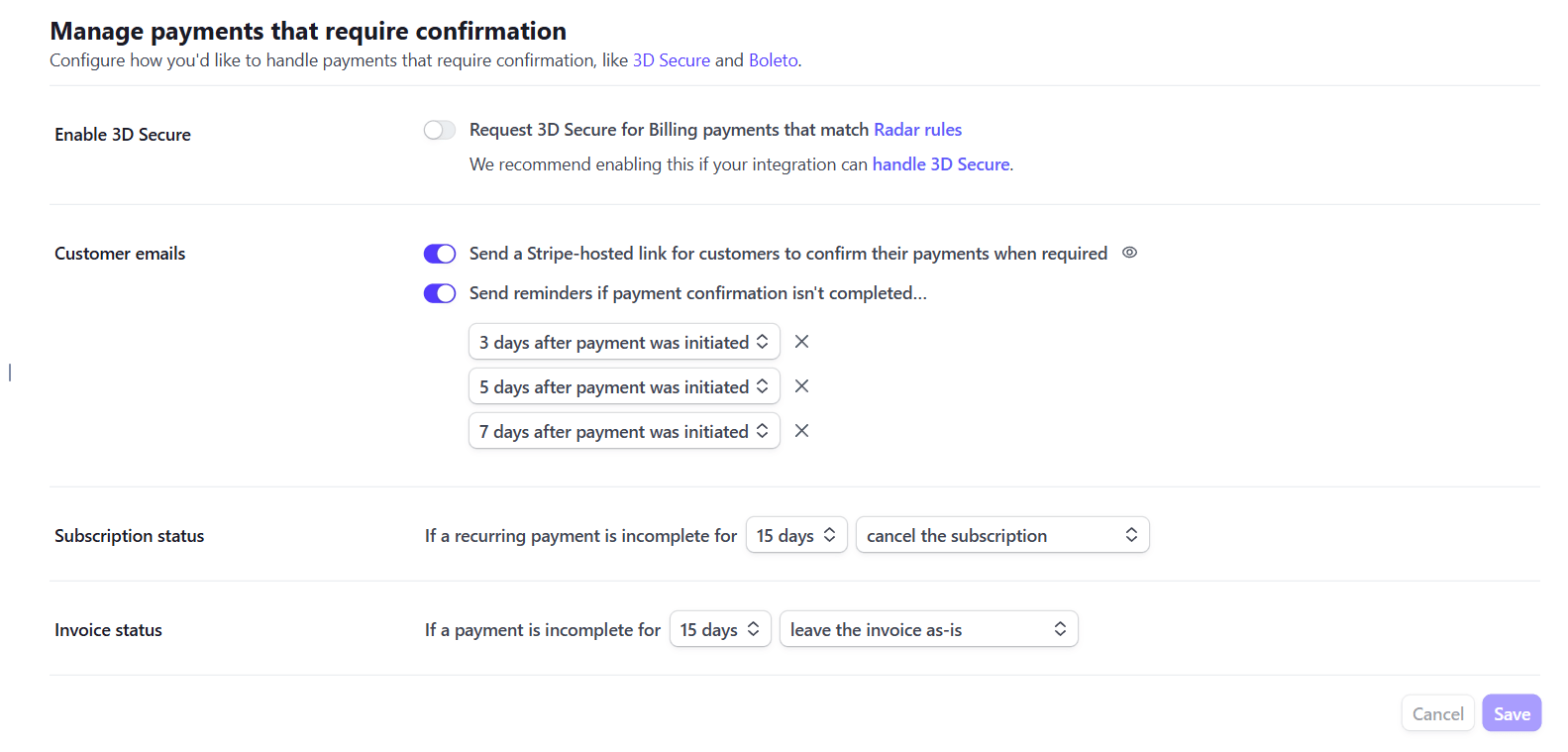
Stripe decides what happens after it retries failed subscription payments. Configure this before launch so users do not keep access longer than you intend. crxbase treatspast_due subscriptions as paid only until the subscription’s current billing period ends. This follows Stripe’s recommendation to give customers time to fix a failed renewal payment. If your Stripe settings leave a subscription as past_due after all retries fail, getUser() returns paid: false after period_end.
1
Open automatic collection settings
2
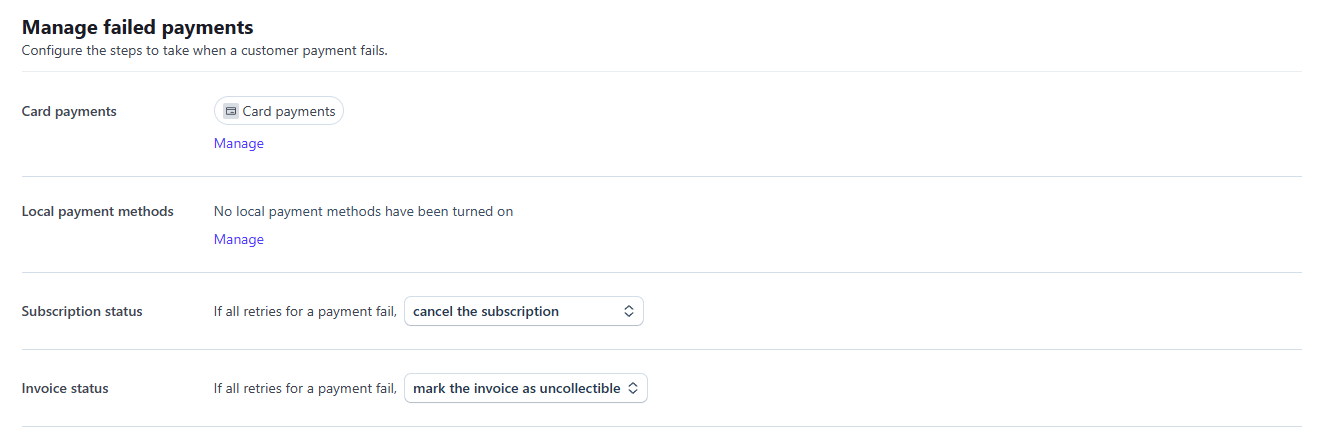
Review failed payment methods
In Manage failed payments, review the payment methods Stripe will retry. For card payments, click Manage if you need to change retry behavior or
customer communication settings.
3
Set Subscription status
Choose what Stripe should do with a subscription If all retries for a payment fail. crxbase
recommends cancel the subscription. You can choose to mark it
unpaid or leave it past_due instead, but decide this intentionally based on how
you want customers to recover access.4
Set Invoice status
Choose what Stripe should do with an invoice If all retries for a payment fail. A common setting is mark the invoice as uncollectible, which
keeps your records clear when payment recovery has failed.
5
Save your changes
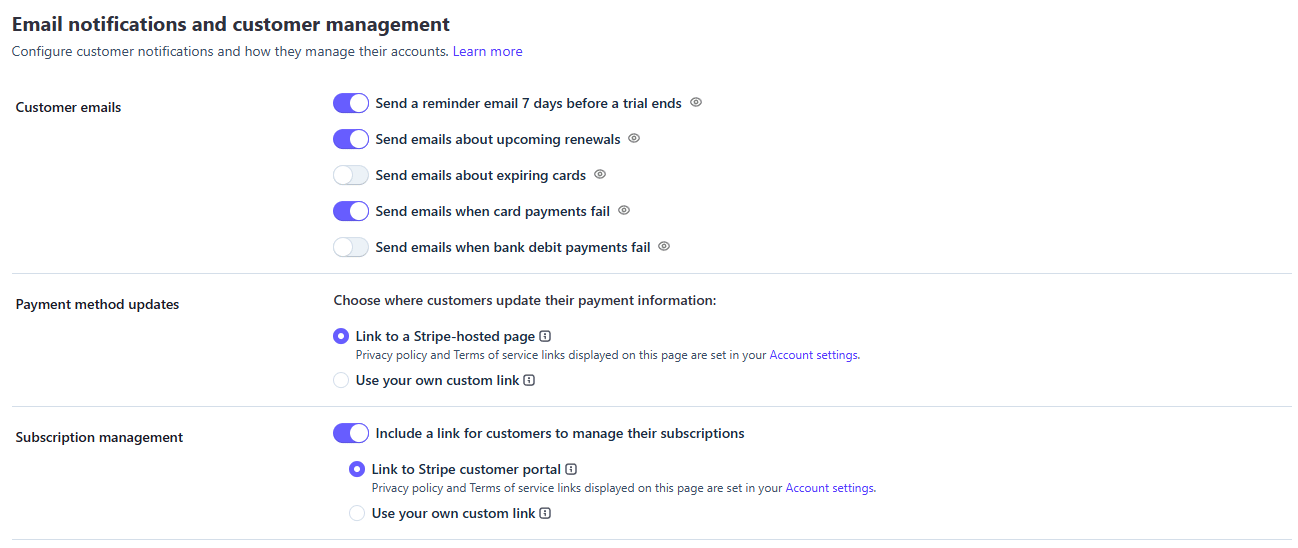
Click Save in Stripe. Users with failed payments can still open the customer portal from your extension to update their payment method.
Recommended settings
Platform fee
crxbase charges a 5% platform fee on each transaction. This is automatically deducted by Stripe during payment processing - you receive the remainder directly in your Stripe account. Stripe processing fees, bank fees, taxes, VAT/GST, refunds, disputes, and chargebacks are separate from the crxbase platform fee. You are responsible for configuring tax collection, receipts, and customer-facing tax disclosures for your own products in Stripe.Supported countries
When you connect Stripe, select the country where your business is registered. The dashboard only allows countries currently enabled for crxbase Stripe Connect onboarding. If your country is not shown, it is unsupported for onboarding right now. Stripe may still require more information, restrict capabilities, or reject an account during onboarding based on its own policies.Disconnecting
You can disconnect your Stripe account from the dashboard at any time. This closes your connected account configuration with crxbase. Once you disconnect:- All active and trialing subscriptions will be canceled
- Your users will lose access to their paid plans
- All billing data linked to this Stripe account will be cleared
- If you reconnect, it will be a fresh Stripe account and users will need to re-subscribe